Importing Papercut Data
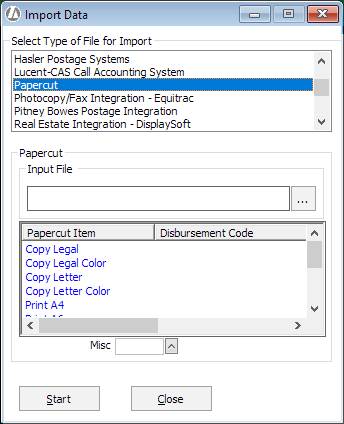
- Select File > Utilities > Import. The Import Data window appears.
-
For Select Type of File for Import, select Papercut.
-
Click the browse button for the Input File box and select the file to be imported.
-
Select each Papercut item listed and assign the item a client expense code by selecting it from the Misc field.
-
Click Start to begin the import process.
-
Rejected entries are recorded in a text file. Successful entries are listed on the Costs & Adjustments window waiting to be posted. Once posted, the entries will appear on the Matter Billing Activity window for the respective matter and are ready to be billed.